Prerequisites
NRGSuite works with most PyMOL versions. However, to generate figures without watermarks we recommend installing PyMOL open-source. For making single mutations, MODELLER is also required, though it is not necessary for using NRGSuite. You’ll find detailed installation instructions below.
To avoid operating system specific installation issues, we recommend to install PyMOL open-source with Anaconda or Miniconda. Bellow we provide instructions on how to install Miniconda.
Download the latest version of miniconda at the following link (Platform: Windows): https://www.anaconda.com/download/success
Download the proper file for Windows under MiniConda and double-click the downloaded .exe file.
Follow the instructions on the screen. If you are unsure about any setting, accept the defaults. You can change them later.
When the installation finishes, use the Windows key and search for Anaconda Prompt.
Click on it.
Note
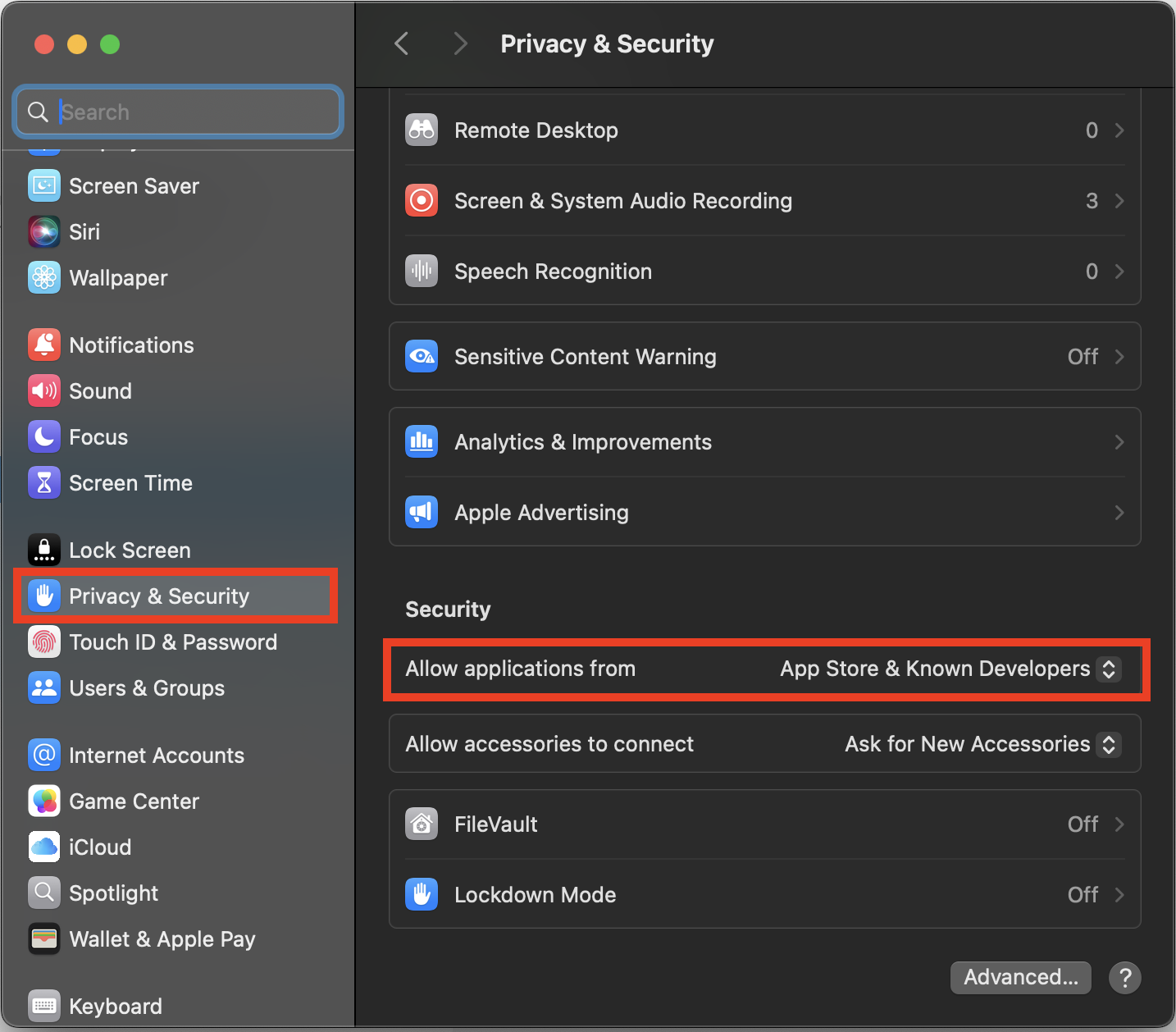
In your System Settings, within the Privacy and Security section, verify that Allow applications from is marked as App store and identified developers.
- Open ‘Terminal’:
Open Spotlight Search by pressing ⌘ + Space
Type Terminal
Click on the first result
Paste the following command and press Enter:
mkdir -p ~/miniconda3
curl https://repo.anaconda.com/miniconda/Miniconda3-latest-MacOSX-x86_64.sh -o ~/miniconda3/miniconda.sh
bash ~/miniconda3/miniconda.sh -b -u -p ~/miniconda3
rm ~/miniconda3/miniconda.sh
~/miniconda3/bin/conda init bash
~/miniconda3/bin/conda init zsh
Close Terminal and open it again.
In a Terminal window paste the following command and press Enter:
mkdir -p ~/miniconda3
curl https://repo.anaconda.com/miniconda/Miniconda3-latest-Linux-x86_64.sh -o ~/miniconda3/miniconda.sh
bash ~/miniconda3/miniconda.sh -b -u -p ~/miniconda3
rm ~/miniconda3/miniconda.sh
~/miniconda3/bin/conda init bash
~/miniconda3/bin/conda init zsh
Close Terminal and open it again.
Paste following commands in Terminal (MacOS) or Anaconda Prompt (Windows) and press Enter
Creating a new environment to avoid a conflict with dependency versions:
conda create -n "pymol-env" python=3.12Loading the new environment (you will need to use this command to open PyMol):
conda activate pymol-envInstalling PyMol:
conda install conda-forge::pymol-open-sourceOpening PyMol :
pymol
MODELLER is available free for academic non-profit institutions. You can obtain a key here. Paste the following command in Terminal (MacOS) or Anaconda Prompt (Windows) and press Enter:
conda config --add channels salilab
conda install modeller
You will be prompted after installation to edit a file to add your MODELLER license key to a config.py file.